

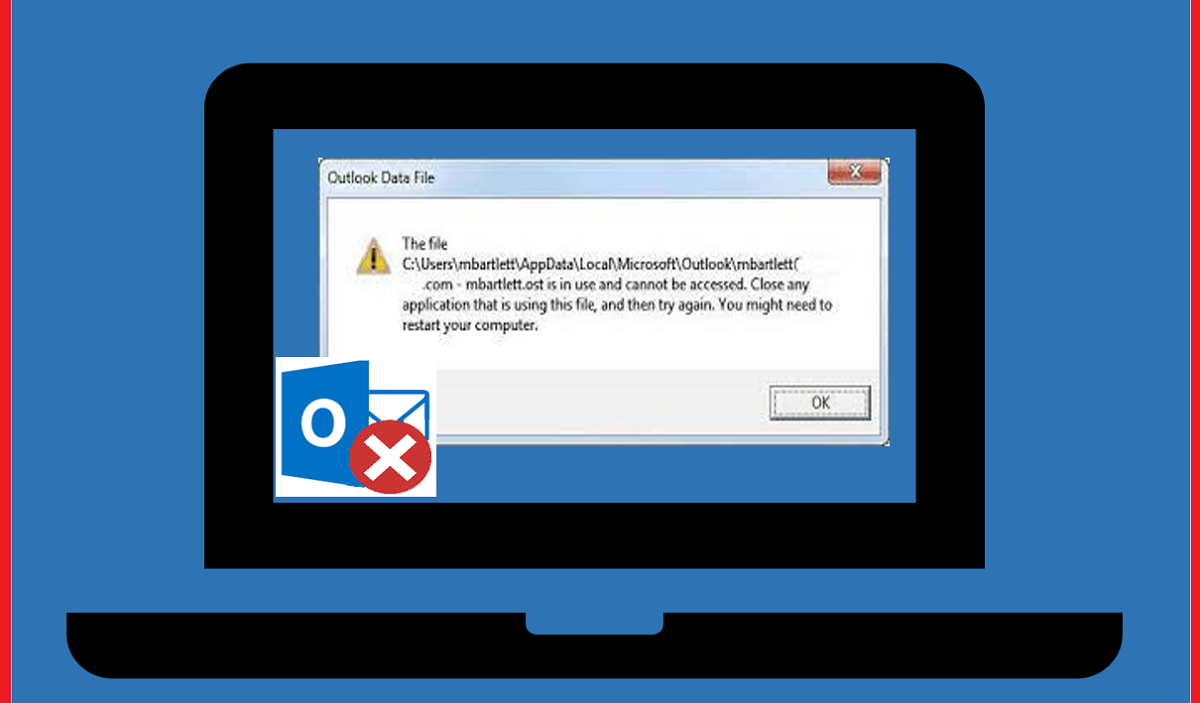
Outlook is an email and calendar software available as a part of the Microsoft Office suite. It allows you to send and receive email messages and track your task. It uses an OST file which is the Outlook data file when you have an Exchange account and want to work offline. At times, users have seen the “The file username ost is in use and cannot be accessed” error when launching Outlook. If you also face this error, then in this article, we have suggested some methods to fix this error.
What causes The file username ost to be in use and cannot be accessed errors in Outlook?
If you are facing the “Outlook file username.ost is in use and cannot be accessed” issue, there may be several reasons behind this error. Below we have given some reasons.
- It occurs if the .ost is still used or locked by the other process.
- It can happen from a conflict between the Outlook application and other files.
- It can happen, If the process Communicator, ucmapi.exe, etc. are running in the background.
- This error can also occur due to a lack of synchronization between the OST file and the Exchange mailbox.
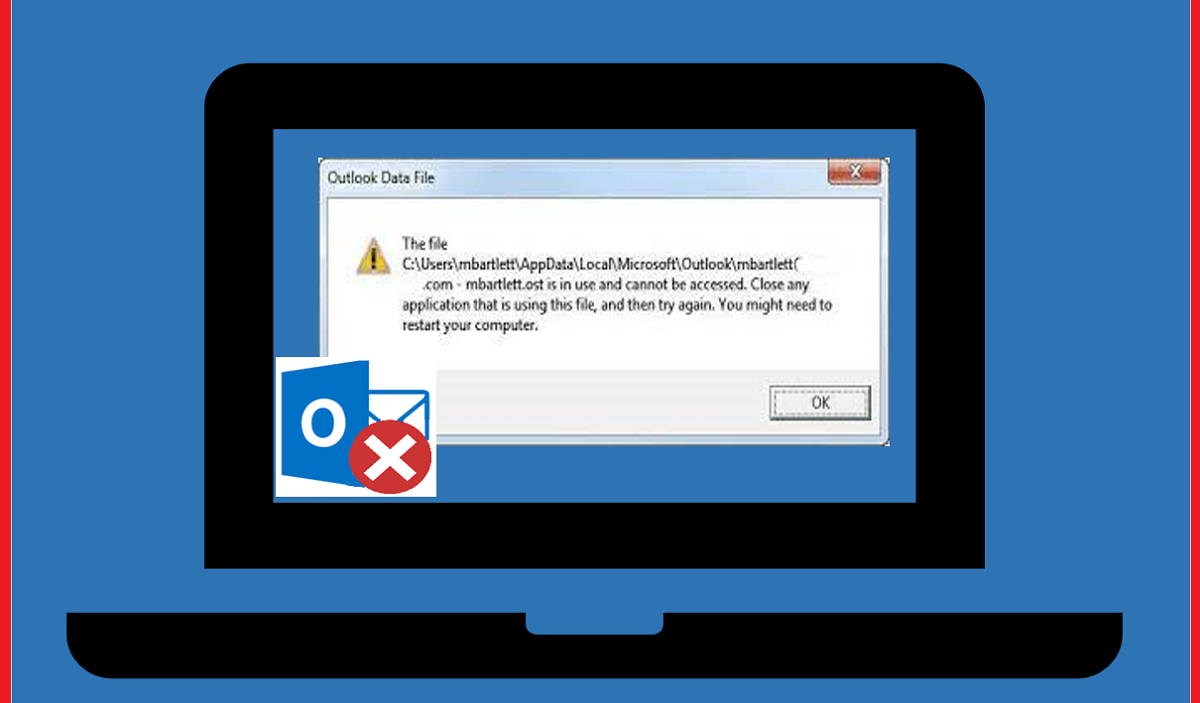
Outlook, the file username ost is in use and cannot be accessed
If you see The file username.ost is in use and cannot be accessed message while logging into Outlook, then here we have given some methods to fix this issue :
- Restart your system and router
- Disable Cached Exchange Mode
- End All the Outlook-related task
- Repair OST file with Inbox Repair Tools
Let’s use this method one by one to fix this error.
1] Restart your system and router
Restart your PC and your internet connection and see if that helps.
If possible, use another internet connection and see.
2] Disable Cached Exchange Mode

If restarting the system does not help you fix this error, you can try to Disable the Cached Exchange Mode option to fix this issue. It will help users to work offline in Outlook. Now, follow the below steps to disable this option.
- Launch the Outlook application and click on the File option in the upper left corner.
- Choose Account Settings and click on Account Settings.
- Go to the Email tab and select your account.
- Click on the Change tab.
- Now, you will see Offline Settings.
- Uncheck the box for the option Use Cached Exchange Mode.
- Restart the Outlook application to save the change.
Note: Don’t forget to turn “Use Cached Exchange Mode” ON if this error is not fixed.
3] End MS Outlook and related application

If the above methods do not help, then you can try to close or end MS Outlook and related applications. You have to make sure no Outlook application is running in the background. Now follow the below steps to do this.
- Navigates to the Windows search bar, type Task Manager, and open it.
- Go to the Process tab.
- Look for the name Communicator, Outlook, Teams/Lync, or UCMAPI.
- If you get any options related to the application mentioned here.
- Then, select them and then click on the End task button in the bottom right.
- Now, Restart your system to save the change.
Try to open Outlook again. Hopefully, it will work fine now.
4] Repair OST file with Inbox Repair Tools
When all the methods shown above do not fix this issue related OST file, then maybe your OST file gets corrupted. In this case, you need to repair the OST file with Inbox Repair Tools. Microsoft has provided the Inbox Repair Tool, which lets you recover the folder and items from an offline folder or .ost files. It also helps to regain items from corrupted personal folders or .pst files.
How do I fix Outlook OST that cannot open?
Here are a few steps to fix the Outlook OST file that cannot open. These are:
- Kill all the Outlook-related process
- Disable Cached Exchange Mode
- Uninstall and reinstall the latest version of Outlook
- Turn OFF Outlook ads-in that may cause conflict
Also read: The File cannot be opened message in Outlook – Outlook Data File
How do you fix the Outlook data files that cannot be accessed?
If you want to fix Outlook data files that can not be accessed then try these fixes.
- Restart the Outlook
- Check Account Settings
- Check Internet Connection
- Create New Account Profile
- Setup Email Account
Also read: Sent items folder missing or not found in Outlook; How to get it back?
How do I convert an OST to a PST file in Outlook?
If you want to convert the Outlook OST file to a PST file, use the below steps to convert manually.
- First, open Outlook and click on the File in the top left corner.
- After that, click on the Open&Export and select the Import/Export option.
- Now select the Export to a file option on the Import and Export Wizard Window page and click Next.
- Now select the Outlook Data File (.pst) and again click Next.
- Now, choose whether to export a specific folder or the whole account and also check the include subfolder box > click Next.
- Choose the destination for the Export by clicking on browse, and then click Finish.
Also read: How to clean up, compact, and reduce mailbox size in Microsoft Outlook.
Source link
www.thewindowsclub.com