

Photoshop is a versatile software that can be used to produce great graphics. The key to any software is knowing the things that make using it easier. Photoshop is no exception and this article will explore some tips and tricks that Photoshop users should know.

Photoshop Tips and Tricks for Beginners
Photoshop has a lot of tips and tricks that will make using it even easier. Go through this list and see which ones you already knew, and which ones are new to you. This list is in no way all the tips and tricks so check back for more Amazing Photoshop Tips and Tricks.,
- Select colors from Anywhere
- Install Custom Photoshop Brushes
- Edit Multiple Text Layers at Once
- Use Blend If
- Copy or Transfer Layer Styles Quickly
- Merge Shapes
- View Only One Layer
- Color Code Layers and Groups
- Close all Open Photoshop Documents
- Create Animation in Photoshop
- Warp Text in Photoshop
- Move Layers With Keyboard
- Paste in Place
- Create Guides in Photoshop
- Draw a Straight Line
- Write on Any Text or Object
- Increase Undos
- Create Custom Brush
- Add Quick Color
- Quick Duplicate.
1] Select colors from Anywhere
Photoshop is great for sampling colors from anything as long as you can get it into photoshop. You just need to screenshot it, drag it or open it in Photoshop then you can sample the color. What if I told you that there was another way to sample color from anywhere? Well, you can sample colors that are not in Photoshop. All you need to do is select the eyedropper tool, then make the Photoshop window smaller, click anywhere on the canvas and hold the left mouse button and drag the mouse anywhere outside of Photoshop. Photoshop will sample any color that the mouse pointer goes on. Now you don’t have to be going through the hassle of trying to screenshot or open the item that you want in photoshop.
2] Install Custom Photoshop Brushes
We all like the ability to make choices beyond what is given to us, I guess it is the sense of freedom and control. Photoshop offers the freedom to use brushes beyond what is pre-installed in Photoshop. There are thousands of brushes available on the internet and you can use them in Photoshop, you just need to download and import them into Photoshop. You can import the brushes into Photoshop by first downloading them, then go to Brushes, on the left, right-click on the canvas, click the gear icon, then click load brush. You can then search for the folder with the brushes you downloaded. As with anything on the internet, be careful how you download. It is also wise not to install too many brushes as these could potentially slow down Photoshop.
3] Edit Multiple Text Layers at Once
When working with Photoshop you may be working with lots of layers. You may cringe at the thought that you have to work on so many layers. What if you have to make the same changes to multiple text layers, how do you change them without doing them one by one? Well, leave it up to Photoshop to have a way to make it possible for you to edit multiple text layers. To edit multiple text layers select one and hold Ctrl and select the other text layers. This will select all the layers and they will have the blue highlight. Click the Text tool and go to the top of the window to the layer options where you can change the Color, Font Type, Alignment, Font Size, and Warp the text.
4] Use Blend If

Blend if allows you to blend anything onto something else. You just need to have two layers, right-click on one of the layers, and go to Blending Option. Without clicking anything go to the bottom of the Blending option window and you will see Blend If. There are two slider bars and a color picker with grey, red, green, and blue. If the layer you clicked on was at the top, move the top slider and it will cause the top layer to fade.

To make it fade smoother, hold Alt to split the slider on the slide bar while you move it. You may choose each color channel and move the slider and set them at different values and it will remain there even when a different color channel is selected. This way you can cause multiple blending and fading on different color channels.
5] Copy or Transfer Layer Styles Quickly

You may have a layer style that you want to copy onto another layer. This can be easily done with Photoshop. You just need to go to the layer with the style that you want to copy, hold Alt then hold the FX icon and drag the FX icon to the other layer.

You may also copy the layer style from one layer to the next by right-clicking on one layer and then pressing Copy Layer Style. You then go to the next layer, right-click and press Paste Layer Style.

If you want to transfer the layer style from one layer to the next, you go on the layer with the style that you want to transfer, then drag the FX icon to the other layer. This will move the layer style from one and place it on the other.
To delete/clear layer style from a layer quickly, right-click on the layer and click Delete Layer Style, this will clear all layer styles on the layer.
6] Merge Shapes

You may be working on a project but you cannot find a specific shape that you need. Photoshop allows you to merge shapes to create new shapes. To merge shapes just create the two shapes, and place them where they touch each other. They will start looking like the shape you need.

Go to the Layers panel on the right, select both shapes and right click then press merge shapes. Note that when the shapes are merged, if they are of different colors, the new shape will take the color of the shape that is at the top. If you click on the new shape you will see the lines where each shape was joined.
7] View Only One Layer
You may be working on a large project with lots of layers. You may want to focus on one layer but you would have to manually click on the eye icon on each layer to hide them. Well, there is an easier way to hide all the other layers all at once. Hold Alt and click on the eye icon of the layer that you want to keep visible, this will make all the other layers invisible. When you hold Alt and click the eye icon again, the other layers will become visible again.
8] Color Code Layers and Groups

Photoshop allows you to organize your layers and groups by color. This can come in handy if you want to keep your workspace organized and easy to work with.

Having different colors make the multiple layers easier to look at and it is easier to find layers or groups.
9] Close all Open Photoshop Documents
You may have a lot of Photoshop canvases open as you work. You may now want to close them all but not close Photoshop. You can easily close them all by holding Shift while clicking the close button on any of the photoshop canvas windows.
10] Create Animation in Photoshop

Photoshop is great for creating or editing images. However, photoshop is also capable of making animation. These animations can be saved as GIFs or videos and can be used as advertisements on websites, social media, or blog sites. These animations can also be used as How to Videos. Photoshop can also be used to animate a still photo. Who knew that an image editing software could also make animations?
Read: How to make an Animated GIF in Photoshop
11] Warp Text in Photoshop
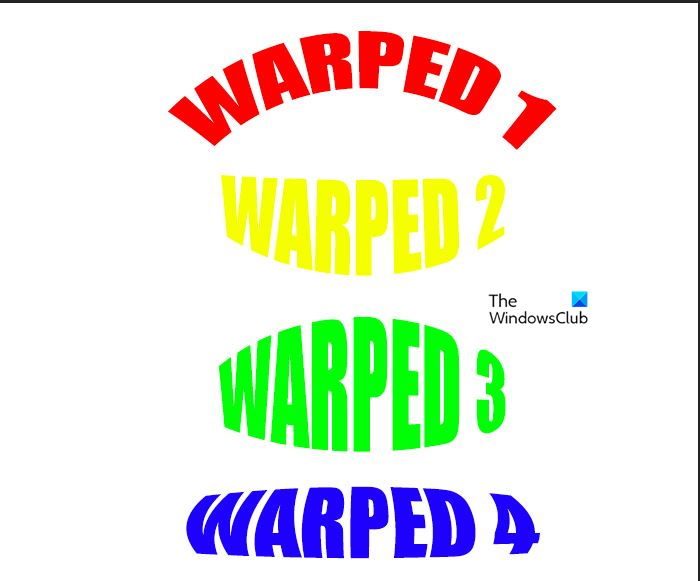
Whatever your project entails, Photoshop has just the tool to get it done. You may need to warp text to fit a certain look in the project. Photoshop allows you to warp text to fit any look that you want. Write the text and while it is still active, look at the top of the window where you see a T with an arch under it. Click that icon and you will get a lot of warp options.
12] Move Layers With Keyboard
Photoshop allows you to use the keyboard to complete some tasks. You can move layers to different positions in the layers window using the keyboard. To move a layer using the keyboard, Hold the Ctrl + [ to move the layer down or Ctrl +] to move the layer up. If you want to move a layer faster hold Shift + Ctrl + [ to move to the extreme bottom or Shift + Ctrl + ] to move to the extreme top.
13] Paster in Place
When you cut and paste to a new layer in Photoshop, the item you paste will automatically be placed in the middle of the screen. If you want to paste to a new layer, but keep the position the same, use Ctrl + X to cut and Ctrl + Shift + V to paste in place. You can also hold Shift while dragging layers between Photoshop documents with the Move tool to keep the same position.
14] Create Guides in Photoshop
Guides are essential in Photoshop because they help you to line up your work properly. You can create new guides by clicking on any of the rulers and dragging them toward the canvas.
15] Draw a Straight Line
You may want to draw a straight line or go in a straight line with tools in Photoshop. Well, you can do just that with a lot of the tools in photoshop. Your hand may be shaky or you have a small margin for error and you need to make a straight line with the Pencil or Pen Tool, Brush, or even the eraser. To draw the straight line, click on a point and hold Shift and click another point. The line will be straight in context to the previous point. The cool thing is that if you hold Shift and keep clicking, the lines will keep joining at the last point and will keep going as long as you hold Shift and keep clicking. You can also press Shift to get a straight line when using the line tool.
16] Write on Any Text or Object

The graphic designer’s mind is always looking for new ways to make the designs more interesting, Photoshop offers so many great ways to express your creativity. One great way to make your work stand out is being able to write around any object or text. To write around any object or text you just need to select it with the Magic Want, when you see the selection path right-click and choose Make Work Path. You will be asked to Choose Tolerance. The tolerance can be set from 1-10. The tolerance is how close or how far the work path will be from the original object. With the work path now created you can write around the work path. You may choose to then delete or hide the object and show the text only.
17] Increase Undos

When designing anything, undo can be your best friend. Undo allows you to do a lot of trials and errors or maybe you made a mistake way back but didn’t realize it. With undo, you can go back as if the mistake never happened. However, if the mistake happened very far back, then you may not be able to undo it. This is because Photoshop has a default number of undos set and if you go beyond that number you can’t undo. However, you can increase the number of undos up to 1000, yes you read right, 1000 undos. You can change the number of undos by going to Edit then Preferences, Performance, go over to History State, and change the number. The default History State may be around 20 but you may increase it up to 1000. Note that the more history states the more computer resources that Photoshop will have to use up to save all those work history while you work. It is good to keep the history state to 75 or less. Here is a tip, if your Photoshop is freezing or glitching in any way, check the number of history states and decrease it if it is too high. This may help with the Photoshop issue.
18] Create Custom Brush
Photoshop offers a lot of freedom to use things not there by default or create your own. Photoshop allows you to make your own brush.

To create your own brush place an object on the canvas, make it very small, go to Edit then Define Brush Preset.

Give the brush preset a name then click ok

To use your new brush just choose the Brush tool then right-click on the canvas and look under the list of brushes for your custom brush.
The new pear brush that was created.
19] Add Quick Color
Photoshop makes designing unique images so easy. With Photoshop you can create quick colors on images or texts. This allows you to add color to parts or all of an image. You do this by using the Magic Wand or Quick Select Tool then when you have made a selection click Layer Vis Copy. You will see a new layer added to the layers panel. You will be able to edit the color of that layer, that layer will be over the object so it can be used to cover the color of that layer.

Picture of pears before and after adding the color.
20] Quick Duplicate
You can quickly duplicate anything in Photoshop by holding Alt and clicking and dragging. This can be done on the canvas or the layers window. You can also duplicate the effect on one layer and have it placed on another layer. Just hold Shift and click the FX icon and drag it to the other layer that you want to put the effect on.
Read How to make an Animated GIF in Photoshop
Why do I need to know these Photoshop Tips and Tricks?
Knowing the photoshop tips and tricks will help you work faster. You will also discover new things that are possible with Photoshop as you explore tips and tricks. Tips and tricks also help you discover new ways to do things in Photoshop.
What are the Minimum and Maximum Amounts of Undos that you can Have in Photoshop?
Photoshop allows for a minimum of 1 history state and a maximum of 1000 history States. The History States are what allow for undos. The more history states there is then the more work the computer will have to do to store them while you work, This means that you should not want to put too many history states in the option.
What is the easiest way to learn Photoshop?
The easiest way to learn Photoshop might be different for everyone, but the will to learn it, having the software, and dedication are the first steps to learning Photoshop. My first experience with Photoshop was when I saw people using it and I wanted a way to express my art. I can’t draw at all so Photoshop for me was the best way out. Before I even started to learn properly my organization started to send me design jobs, so I had to learn while I was working, asking questions, and researching. So you could say I had the will to learn it, acquire the software, and research. Regardless of whether you learn on your own or you go to a design school, you will have to research and practice on your own. Photoshop is a practical skill that requires doing instead of just watching, reading, or listening. No matter how advanced you get, it is always good to watch videos and research so that you can learn new things and remember to practice, practice, practice.
What are the top 5 Photoshop tips?
There are things that all should know when using photoshop and their work will be easier.
- Learn the basics, learn about the tools on the left panel and use them by themselves to see what they do to images. Learn the names of the tools and learn Photoshop terms, for example, the difference between the canvas and the image, what is stroke, etc.
- Learn as many Photoshop shortcuts as you can and practice using them as you work. Shortcuts will help you work faster.
- This may seem unimportant, but I would suggest learning colors and color rules. Learn what colors go together well. Learn the different meanings of colors and the feelings they convey. For example, if you are designing a logo for a bottled water company, red would not be a good color to use as red represents danger, so blue would be a better choice since blue is a more calming color. On the other hand, most successful companies have red as their company color or a mixture of red and other colors. So you have to know the colors and when it is best to use them.
- While editing an image, it is important to learn how to move around it easily without using the scroll bars. The best and easiest way is to use the zoom tool and the move tool. The zoom tool is the magnifying glass and the move tool is the little white hand. Being able to move around an image properly makes editing it easier. You will do a lot of photo editing in Photoshop so this will come in handy.
- Working with layers is a good habit to form. Using new layers for each step will make it easier to make changes or undo. When you work on one layer it is hard or impossible to make changes if you have gone a long way or if you save and close the Photoshop document. The Undos in Photoshop undo depend on the history state and by default, there are limited history states as you work. That makes working with layers very important as you will be able to delete a layer if some issues or changes need to be made.
What should a beginner learn about Photoshop?
A beginner should learn how to set up the canvas to begin working. They should learn how to get the sizes and the color modes and resolution. These are important because they will determine the look of the finished product on whatever media it will be used for display. Beginners also need to learn the different design tools that they will need to use. They will be doing mostly designing or image editing so they will need to learn those tools. The beginner will also need to learn how to save the document and the best format to save in for the purpose that the document will be used.
Is Photoshop easy to use for beginners?
I found photoshop easier to use once you learn the basics. I learned to use both Photoshop and Illustrator on my own and I found Photoshop easier to learn without much help. This is not saying that Illustrator is hard to learn, but Photoshop is similar to a lot of basic editing software, even though it is more advanced. With Photoshop you get what you do, and you don’t have to do many changes. For example, if you do a drop shadow, it will be almost the way you want it to look and you will not have to do many changes to it. A beginner’s hardest challenge with Photoshop will be their fear. Their fears will make it harder for them to try.

Source link
www.thewindowsclub.com