
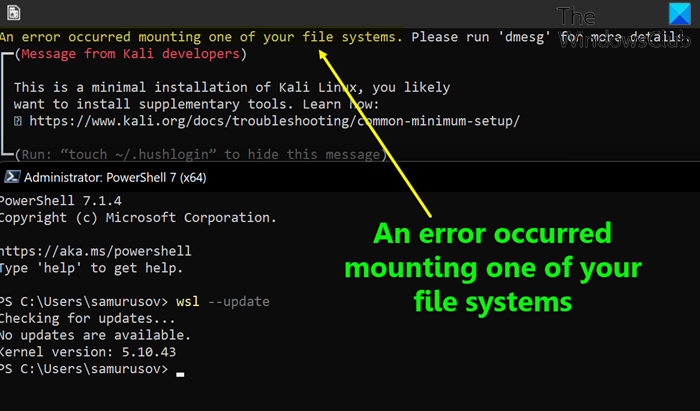

While opening the Windows Subsystem for Linux on Windows 11/10, if you get an error message saying An error occurred mounting one of your file systems, these solutions will troubleshoot the issue. It happens when your system fails to mount the drive. However, you can get rid of this problem with the help of these tips tricks. The entire error message says something like this:
An error occurred mounting one of your file systems. Please run ‘dmesg’ for more details.

An error occurred mounting one of your file systems
To fix An error occurred mounting one of your file systems message in WSL, follow these suggestions:
- Reinstall Windows Hypervisor Platform
- Update WSL
- Set default distribution
To learn more about these steps, continue reading.
1] Reinstall Windows Hypervisor Platform

To use Windows Subsystem for Linux, you must enable a few things on your Windows 11 or Windows 10 computer. For example, it is required to enable Virtual Machine Platform, Windows Hypervisor Platform, etc. If you have disabled those two elements or even one component, you might encounter this issue on your PC. In most cases, people disable the Windows Hypervisor Platform. Therefore, it is recommended to verify the setting before heading toward other options.
To reinstall the Windows Hypervisor Platform, follow these steps:
- Search for turn windows features on or off.
- Click on the individual search result.
- Remove the tick from the Windows Hypervisor Platform checkbox.
- Click the OK button.
- Restart your computer.
- Open the same Windows Features panel.
- Tick the Windows Hypervisor Platform checkbox.
- Click the OK button.
- Restart your computer.
Once done, you will be able to use WSL without any error. However, if it doesn’t help, you can follow the other two solutions mentioned below.
2] Update WSL

Updating the Linux Kernel or WSL often helps fix this issue on Windows 11/10 PC. If you haven’t tried this solution earlier, it is recommended to update the Linux Kernel on your PC. The process is pretty straightforward, and you can do that using the following steps:
- Press Win+X to open the WinX menu.
- Select Windows Terminal (admin) option.
- Click on the Yes button.
- Enter this command: wsl –update
- Allow the process to complete.
Once done, you can close the Windows Terminal window and start the Windows Subsystem for Linux.
3] Set default distribution

If you have installed docker on your WSL, you might encounter this problem while running it on your PC. In such situations, you need to verify and set the correct distribution as the default one. For that, do the following:
After that, close the Command Prompt window and check if you can run WSL or not.
How to fix An error occurred mounting one of your file systems?
To fix the An error occurred mounting one of your file systems error on WSL; you need to follow the aforementioned solutions. First, you need to reinstall the Windows Hypervisor Platform. As it is one of the most important components to run WSL on Windows 11/10, a slight conflict can cause such issues. Following that, you can update the Linux kernel and set the default distribution.
How to fix WSL unable to mount drives and thus unable to work in Windows?
If WSL is unable to mount drives on Windows 11/10 PC, you can follow the above-mentioned steps to get rid of this problem. It is most important to check the Windows Hypervisor Platform. If there is some issue, you won’t be able to use WSL in any way. That is why the first solution is mandatory to follow when WSL fails to mount drives.
That’s all! Hope these solutions worked.
Read:

Source link
www.thewindowsclub.com