

If you want to buy, manage, and play Microsoft Games on Windows without using Steam, then your best bet is to use the Xbox app. The app has improved a lot over the years, and with the rise of Game Pass, it has brought more value than ever before. Now, there will be times when downloading games from the Xbox app will be slow and annoying. In many cases, this has much to do with the app itself, certain settings in Windows 11/10, or your network connection. Thankfully, there are ways to get around this problem, and that is what we’re going to discuss right now.
Fix Windows Xbox app slow download speeds
Increasing the download speed of the Xbox app is something we all want to do, but it boils down to several factors that may or may not be the underlying fault.
- Close and restart the Xbox app
- Check your internet speed
- Reset your router
- Remove yourself from the Xbox Insider Program
- Stop downloads from happening on other computers
- Repair or Reset the Xbox app
1] Close and restart the Xbox app
This may or may not have occurred to you, but the simple task of restarting an app can solve some problems, not all. With that in mind, we do not suggest clicking on the X button to close the app because that only minimizes it.
From the tray area, you will want to right-click on the Xbox icon, then select Quit. From there, go to the Start Menu to open it again.
2] Check your internet speed
There’s a possibility your internet speed is the reason why you’re having problems with downloading games at the optimal speed where the Xbox app is concerned. To find out if your speed is up to the task, you must perform an Internet speed test.
Read: How to find out if your Internet Connection is capable of streaming 4K content
If you’re experiencing high ping or low speed, then maybe your ISP is at fault and there is nothing you can do until they’ve rectified the problem.
3] Reset your router
In terms of resetting your router, this is a simple task. All you have to do here is to unplug the router from the power source and wait a few seconds. After that, plug it back in and press the power button.
Alternatively, you could press and hold the small reset button on the device. This button is usually located at the bottom or on the side of the router. Depending on the design, you may need the assistance of a pen or a pin to press the button.
Read: How to increase upload and download speed in Windows 11/10
4] Remove yourself from the Xbox Insider Program

If you are one of the many folks who have decided to join the Xbox Insider Program, please know this could be the reason behind your woes. You see, the Insider Program was created to give users early access to features and fixes, and while that might sound tantalizing, it can cause uncertainty.
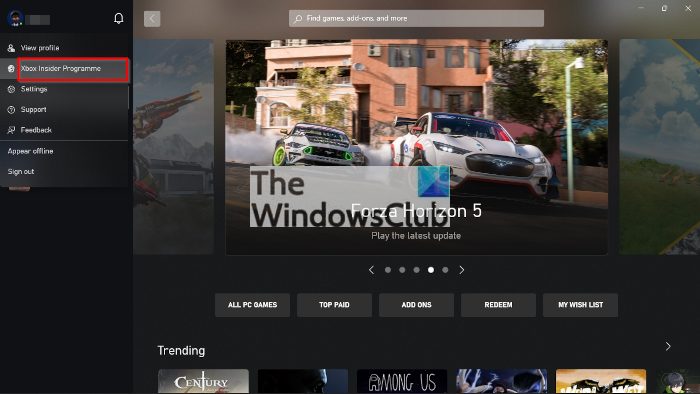
- Click on your username from the Xbox app
- From there, select Xbox Insider Program from the dropdown menu
- Choose Previews from the left menu
- Go to Windows Gaming which is located under Joined
- Select the Leave Preview option after you’ve clicked on Manage
- Click the Continue button to confirm your choices
- Restart the Xbox app to have the chances initiated
That’s it, you should no longer be a part of the Xbox Insider Preview scheme.
5] Stop downloads from happening on other computers

You may not have known this, but Windows comes with a cool feature known as Delivery Optimization. This feature was created to improve the reliability and speed of the Xbox app, Microsoft Store, and Windows update downloads.
In our minds, the most impressive feature here is the ability to download updates from other computers that are downloading the same set of files. This is great, but some users have claimed that by disabling this feature, they’ve managed to solve problems relating to the Xbox app.
- Open the Settings app by pressing the Windows key + I
- Scroll down and select Windows Update from the left panel
- From there, navigate to Delivery Optimization from the right panel
- Finally, turn off Allow Downloads from Other PCs
That’s it, you’re done. You can now check to see if the Xbox app is downloading games faster than before.
6] Repair or Reset the Xbox app
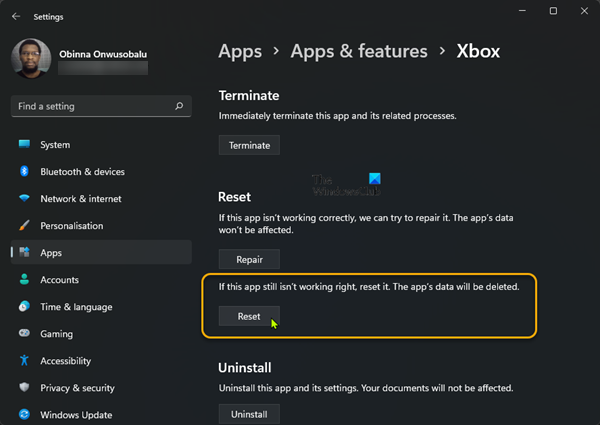
Open Windows Settings and Repair or Reset the Xbox app. That should help!
Is the Xbox app free on PC?
Yes, the Xbox app is free to download and use on Windows 10/11 computers. In most cases, users won’t have to download the app because it is there by default.
Read: Fix Xbox App Notifications not working on Windows PC
What does the Xbox app on Windows do?
The Xbox app acts as a companion to the Xbox console itself where users can communicate with their family and friends on Xbox Live. Folks can also take advantage of features such as a second screen (formerly known as SmartGlass), and remote control. Additionally, the Xbox app can be used as a launcher for PC games that are installed on your computer.
Source link
www.thewindowsclub.com