
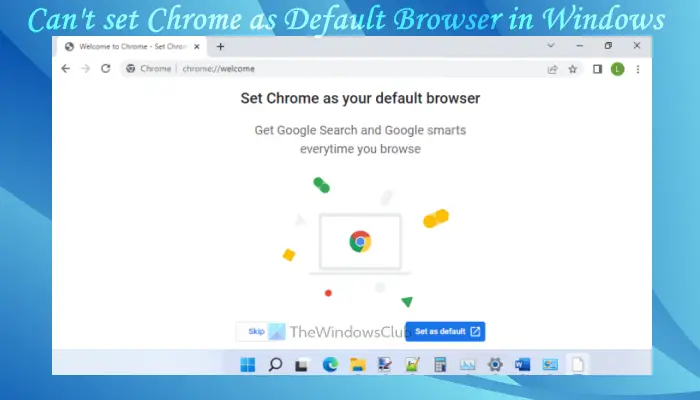

If you can’t set Google Chrome as the default browser on your Windows 11/10 computer, then this post will be helpful. Microsoft Edge is the default browser in Windows 11/10 OS, but users can easily change the default browser to Chrome, Firefox, or any other browser they prefer. However, sometimes, users find it difficult or simply unable to change the default browser. The same is the issue for many users who prefer Google Chrome and want to set it as their default browser. To solve this problem, we have added some solutions in this post that can come in handy.

Can’t set Chrome as the Default Browser in Windows 11/10
Here are some fixes or solutions that you can try to set Chrome as the default browser on your Windows 11/10 computer:
- Use the Settings app
- Use Google Chrome settings
- Update Google Chrome
- Reset all Default apps
- Re-install the Chrome browser.
Let’s check these solutions one by one.
1] Use the Settings app

This is one of the best options to set Chrome as the default browser on your Windows 11/10 computer. You will also be able to set default link types or file types (such as PDF, HTML, WEBP, etc.) for Google Chrome so that whenever you open that file type or link type, it will open directly with Google Chrome.
This solution can also be helpful to solve the problem when Chrome is already set as a default browser, still, some file types or link types are opened with another browser. It happens because that particular file type or link type is associated with another browser and not Chrome. Here are the steps:
- Press Win+I hotkey. This will open the Windows 11/10 Settings app
- Click on the Apps category
- Access the Default apps page
- Scroll down the list of available apps and applications
- Click on the Google Chrome option
- Press the Set default button
- Now, you need to select link types or file types that you want to always open with the Chrome browser. For this, click on the Choose a default option available for a file type/link type present under the Set default file types or link types section. For example, if you want Google Chrome to be set as a default browser for HTML file type, then click on the option available for .html file type
- A box will pop up. Select Google Chrome in that box
- Press the OK button.
2] Use Google Chrome settings

If the Settings app doesn’t help in that way, then you can also use Google Chrome settings along with the Settings app to make it the default browser. The steps are:
- Open Google Chrome
- Type
chrome://settingsin the Omnibox - Press the Enter key
- Click on the Default browser option available on the left section
- Click on the Make default button. This will automatically open the Settings app with the Google Chrome option available under the Default apps page
- There, press the Set default button.
Furthermore, you can also set default link types or file types that you want to open with Google Chrome.
3] Update Google Chrome
If you are running the outdated version of Chrome, then this could also be the reason that you are not able to set Google Chrome as the default browser because of some bug. Therefore, you should get rid of the outdated version of Chrome. For this:
- Type
chrome://settings/helpin the Omnibox of the Chrome browser - Press the Enter key.
This will open the About Chrome page. Now Google Chrome will automatically check for the update, download, and install that update. After that, relaunch the Chrome browser, and then try to set Google Chrome as the default browser using the above options. This should work.
Read: Can’t set Firefox as the default browser on Windows.
4] Reset all Default apps

You can also try to reset default apps and file associations to Microsoft’s recommended app defaults. This will give you a fresh start to set the default apps/applications on your system, including Google Chrome as the default browser. The steps are as follows:
- Open the Settings app
- Click on the Apps category
- Access the Default apps page
- Scroll down the page to the end
- Press the Reset button available for the Reset all default apps option
- Finally, press the OK button.
This will remove all apps and applications that you have set as default on your Windows 11/10 system.
Once all default apps are reset, you can manually change the default browser or use the Settings app or Google Chrome settings to set Chrome as the default browser.
5] Re-install the Chrome browser
If the above options don’t help, then you need to re-install the Chrome browser. Download the installer file for the Chrome browser from the official page, finish the installation process, and sign in to your Chrome browser. Now when asked, try to set Google Chrome as the default browser. This will solve your problem.
Read next: Windows keeps changing the default browser.
How do I set Chrome as my default browser in Windows 11?
To set Chrome as the default browser on your Windows 11/10 computer, the best way to do this is using the Settings app. You can also set default link types or file types to open with the Chrome browser. And, if you aren’t able to set Chrome as the default browser, then you can try the fixes covered in this post above.
How do I get rid of Microsoft Edge as my default browser in Windows 11?
To remove Microsoft Edge as the default browser and select the preferred browser as the default browser in Windows 11, go to the Default apps page of the Settings app. This page is present in the Apps category. After that, click on the browser that you want to set as the default browser. Finally, press the Set default button.
Source link
www.thewindowsclub.com