

In this post, we explain how to remove and change the background in PowerPoint. Backgrounds are known as a part of a picture, scene, or design that forms a setting for a picture or object. Individuals will add backgrounds to their pictures or pages to add creativity, although the background appears furthest from the viewers. Sometimes people will want to remove a background from the photos and want to change them to something more unique or even stylish.
Photoshop and other photo editors are known to make changes to images and can remove background from images easily, but what if you do not have access to a powerful photo editor? You can use Microsoft PowerPoint. Microsoft PowerPoint may be basic when it comes to photo editing, but it has some basic tools that can help to remove and change your background. Follow the steps below to remove and change the background in PowerPoint:
How to remove background in PowerPoint
To remove the background in PowerPoint, first, insert a picture into your document.
Select the picture and go to the Picture Format tab.

Click the Remove Background button.
It will go on the Removal Background tab.

You can use the Mark Areas to Remove button to remove the background and use the Mark Areas to keep button to keep certain parts of the photo.
Remove the background and click Keep Changes.
If you want to remove your changes Discard Changes.
How to change the Background in PowerPoint

To change the Background in PowerPoint:
- Insert a picture into the document.
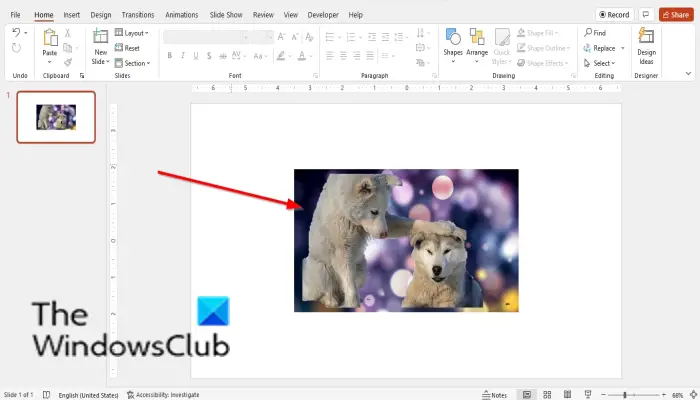
- Take the picture that you choose as a background and place it over the previous picture.
- Then right-click the picture and select Send to Back.
- The Picture that is to be the background will be put as the background for the previous photo.

Can you change the background of a picture in PowerPoint?
Yes, in Microsoft PowerPoint, it is possible for you to change the background of a picture to something else; you will have to remove the background of your picture first. In this tutorial, we have discussed how to remove and change the background of your picture in PowerPoint.
How do you change the background of a PowerPoint to just one slide?
To change the background of a slide, follow the steps below:
- Click the Design tab and then select the Format Background button.
- A Format Background pane will open on the right.
- Click Fill and then select any of the following: Solid, Gradient, Picture or texture or the pattern option.
- Then select the background fill you desire.
How do I change a white background to transparent?
If you want to make any background from the Format Background Pane transparent, follow the steps below:
- When you are on the Format Background pane, select any of the options as your background: Solid, Gradient, Picture or texture, or pattern. There Is a transparent button you can choose from.
- Slide the Slider on the transparent button or type the percentage of how you want the background to be transparent.
- When it comes to other background colors, you will see the changes in transparency, but there are hardly any changes when it comes to white.
READ: How to blur part of a picture with PowerPoint
How do I remove background in PowerPoint 2007?
To remove a background from a picture in Microsoft PowerPoint 2007, follow the steps below.
- Insert a picture into your slide.
- Click the Format tab.
- Click the Recolor button in the Adjust group.
- On the menu, click Set Transparent Color at the bottom.
- A small brush will appear. Use the brush and remove the background from the picture.
- Now the background is removed.
READ: How to make Picture Grayscale and Color in PowerPoint
We hope this tutorial helps you understand how to remove and change the background in PowerPoint; if you have questions about the tutorial, let us know in the comments.
Source link
www.thewindowsclub.com