
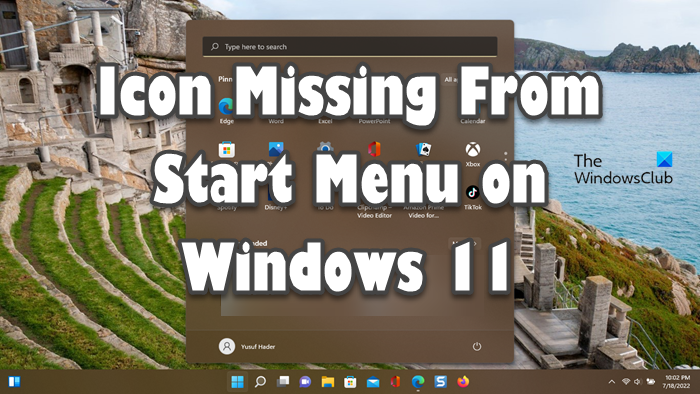

Windows 11 is an upgrade over Windows 10. The change can be seen throughout the UI but is more apparent in the Start Menu. However, many users are having strange problems with the Start Menu. According to them, the Icon is missing from Start Menu on Windows 11. In this post, we will talk about this issue and see how it can be resolved.

Fix Icon Missing From Start Menu on Windows 11
Is the icon missing from Start Menu on your Windows 11 computer? If yes, try these solutions.
- Restart File Explorer and Start Menu
- Check Start Menu Folder Configuration
- Repair Icon Cache
- Reinstall Start Menu
- Uninstall Google Drive
- Repair System Files using Installation Media
Let us talk about them in detail.
1] Restart File Explorer and Start Menu

Let us start by restarting File Explorer from the Task Manager. This will restart not only the File Explorer but also your Start Menu and Taskbar. To do the same, open Task Manager Ctrl + Shift + Esc. Now, look for File Explorer in the Process tab, right-click on it and select End Task. Wait for a few seconds and let the process complete. Once it’s done, open Start Menu and see if the icons are there.
If not, you may also restart StartMenuExperienceHost.exe. For that, you need to go to the Details tab. Find the option, right-click on it, and select End Task, the process will start automatically.
2] Check Start Menu Folder Configuration

Next up, let us check the configuration of your Start Menu and see if you excluded any icon from appearing in the Start menu. To do the same, follow the prescribed steps.
- Open Settings.
- Navigate to Personalization > Start.
- Go to the Folders option.
- Enable the toggle for options you want icons to appear in the Start Menu.
Hopefully, after making the required changes icons will appear in the Start Menu.
3] Repair Icon Cache
As you may already know, most of the things on your Windows computer are cached, including your icons. And just like any other cache, they tend to get corrupted. We will rebuild or repair the Icon cache and see if it helps.
You may want to use Thumbnail and Icon Cache Rebuilder, which lets you purge and rebuild Thumbnail & Icon Cache in a click.
Once the caches are deleted, reboot your system and they will be automatically generated. Check if the issue is resolved.
4] Reinstall Start Menu
We are going to reinstall Start Menu to get rid of any kind of corruption that may stop your from seeing icons. To reregister Start Menu, we are going to use PowerShell. You can search out PowerShell as an administrator from Start itself. You will get UAC, click Ok when prompted. Finally, run the following command.
Get-AppXPackage -Name Microsoft.Windows.ShellExperienceHost | Foreach Add-AppxPackage -DisableDevelopmentMode -Register "$($_.InstallLocation)AppXManifest.xml"
Hopefully, this will do the job for you.
5] Uninstall Google Drive
A lot of victims were able to resolve the issue by removing Google Drive from their accounts. Since it is a cloud-based service, we can take the risk of deleting it. So, go ahead and uninstall Google Drive from your system. Restart your system and see if it helps. If you don’t want to remove Google Drive, try performing Clean Boot and enable all the processes except that of Google. If icons appear, you know what to do.
6] Repair System Files using Installation Media
Finally, if nothing worked for you, then try repairing your system files using Installation Media. This issue can be caused due to corrupted system files and this is the best way to repair it. After repairing your files, go ahead and check if the issue persists. Hopefully, this will do the job for you.
That’s it!
Read: Windows Start Menu Search is slow
How do I get my icons back on Windows 11?
If your desktop icons are missing, just right-clck on the Desktop and tick Show desktop icons. However, if there is some icon that’s still missing, open Settings, go to Personalization > Themes > Desktop icon settings, and tick all the apps you want apps to appear on the Desktop. You should also check our guide on what to do if Desktop icons are missing or not showing. This way icons will reappear. In case icons are missing from the Start Menu, check the solutions mentioned in this article.
Read: Start Menu Transparency not working in Windows
How do I fix missing icons from the Start menu?
If icons are missing from the Start Menu, try the solutions mentioned in this post to resolve the issue. We have mentioned all the solutions you need to get rid of this issue for good. Hopefully, you will be able to resolve this issue pretty quickly.
Also Read: System icons not showing or missing from Windows Taskbar.

Source link
www.thewindowsclub.com